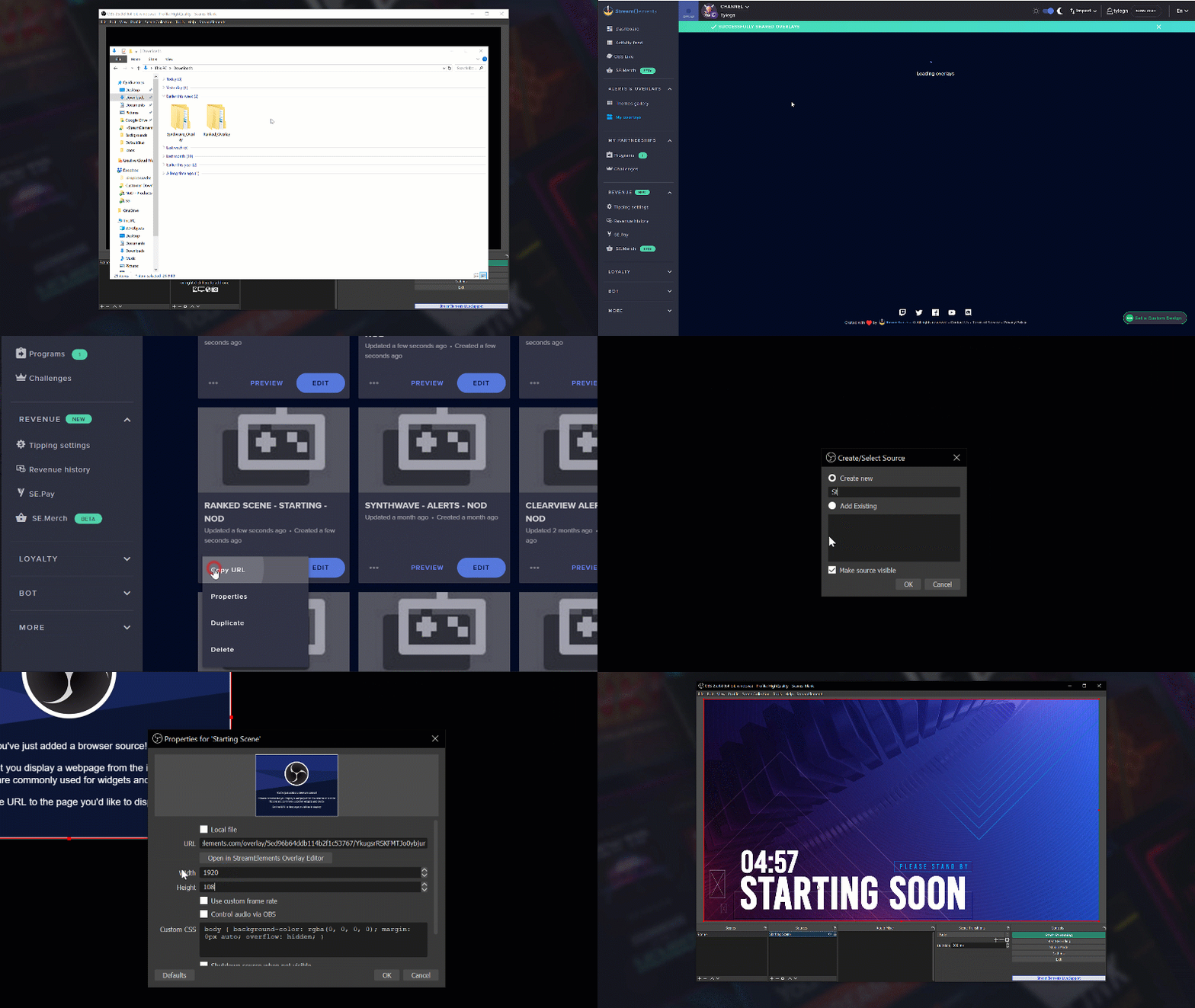
In your downloaded files, open up the StreamElements Overlay folder.
- Head over to StreamElements.com and ensure you’re logged in.
- Double-click the StreamElements Overlay set up link from your downloads.
- This link will automatically open up the StreamElements website and begin the import.
- You should get a notification at the top of the StreamElements website stating the import was successful.
- Head over to "Streaming Tools" then “My Overlays”.
- You should now find the imported Overlay scenes named after the pack they are from, and what they’re intended for.
- Click on the "..." at the corner of the overlay you want to use.
- Paste this URL as a “Browser Source” in your streaming software.
- Make sure the source is 1920 width and 1080 height.
- Click "Ok".
The StreamElements links are specific to your platform. You can only use the Twitch link for Twitch, and YouTube for YouTube.
Once you’ve added this into your streaming software, test the widget to make sure they’re working properly.
Updated
Comments
0 comments
Article is closed for comments.