In this article, you'll learn how to import media, text and stinger sources into Xsplit.
Media Sources/Files
Let's start with Media Sources. These are both static and animated photos, gifs and videos.
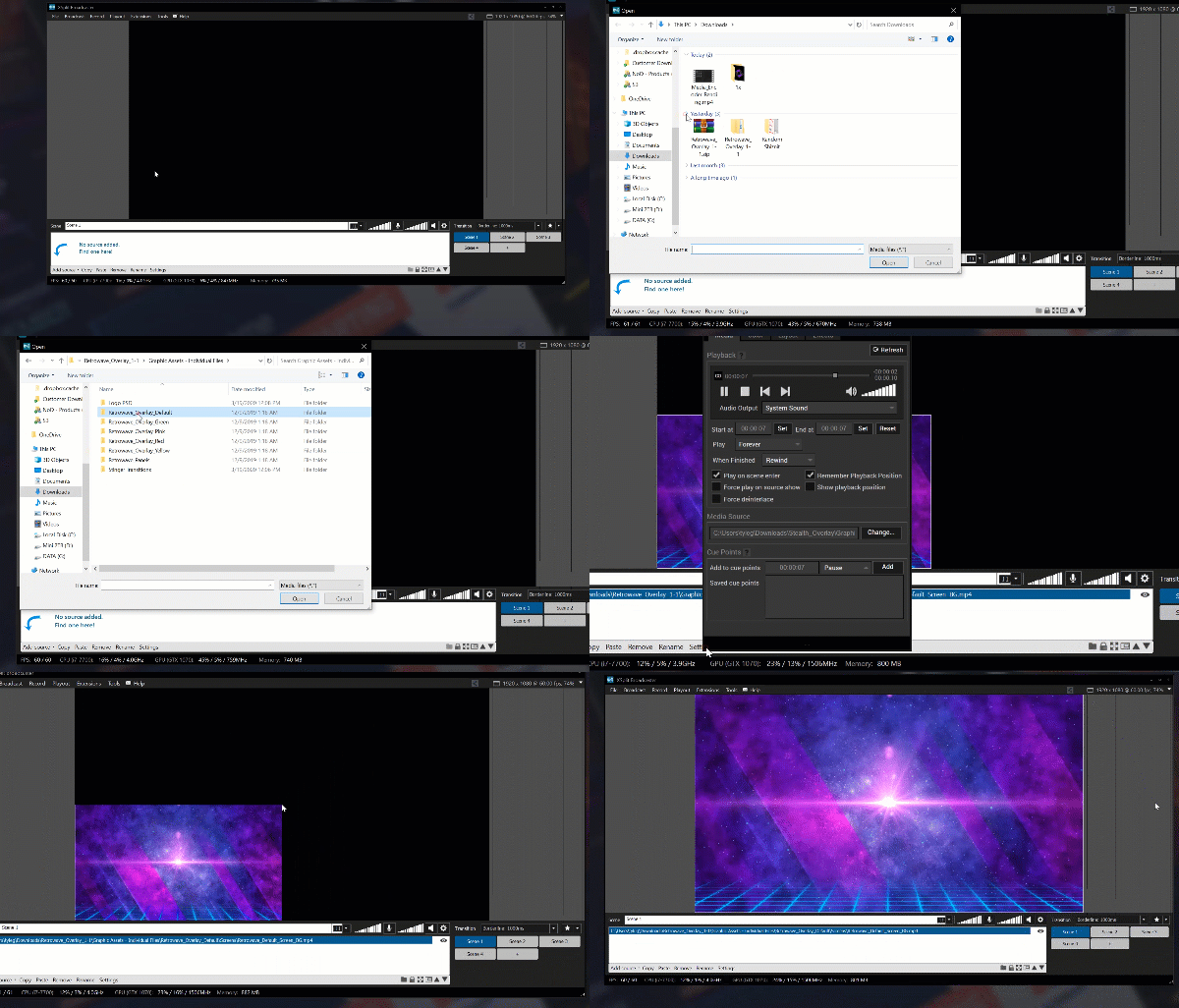
- Click on the "Add Source" tab.
- Scroll down to "Media File".
- Navigate to the Media file you wish to add.
- Double click the file you wish to add or select it and click "Open".
- The files has now been added.
Looping
If the file is animated and you want it to loop, additionally, complete the following:
- While the file is selected in the Scene Editor, click on the "Settings" tab.
- In the pop up window, change the drop down to "Forever".
- If the animation stopped, click the play button above the drop down.
- Click anywhere off from the pop up window to close it.
Text Sources
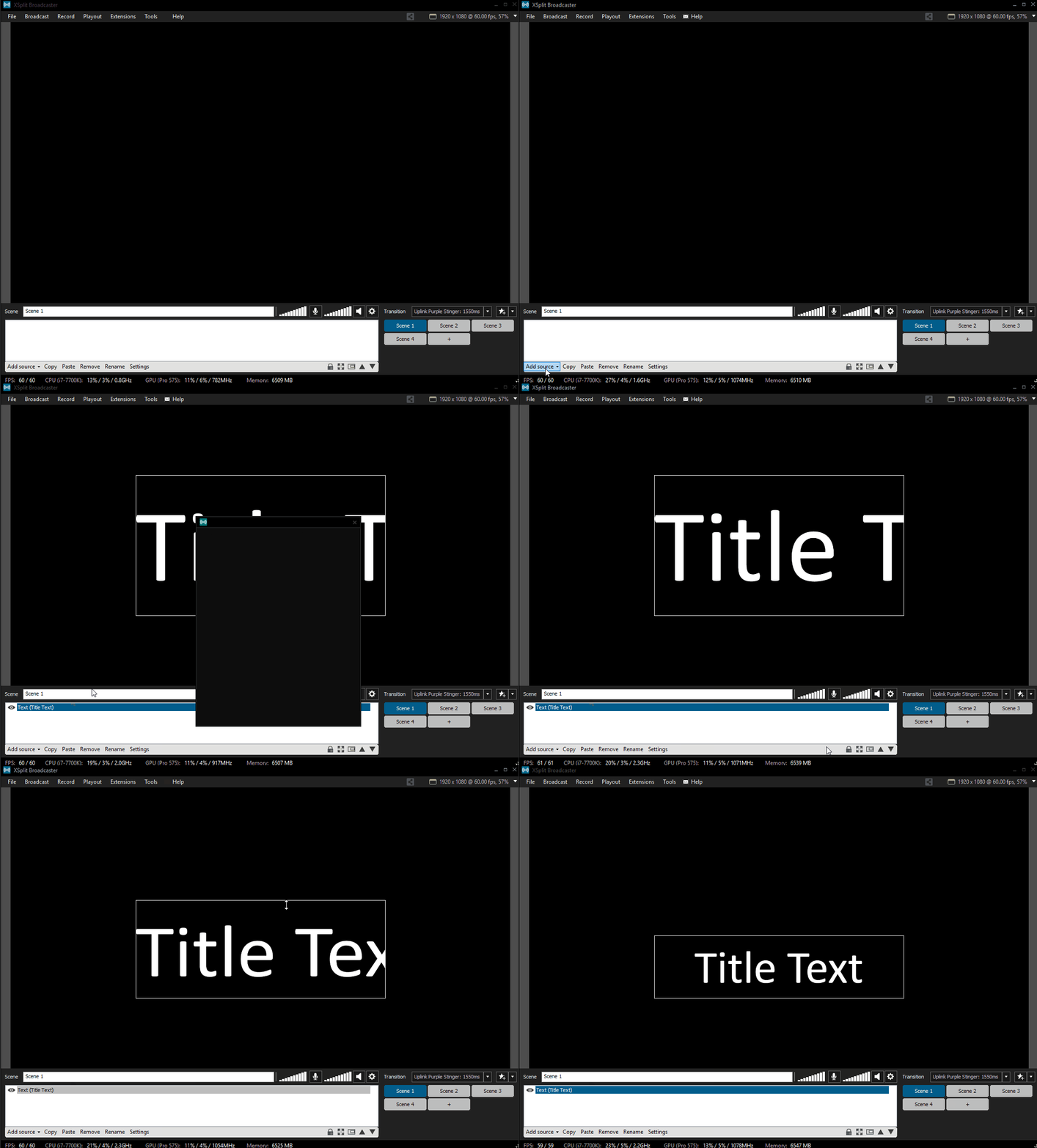
Adding a Text source is much like adding a Media source.
- Click on the "Add Source" tab.
- Scroll down to "Text".
- A popup window will appear where you can add the Text you would like.
Updated
Comments
0 comments
Please sign in to leave a comment.