Matte transitions are commonplace in video editing but a new frontier in live streaming. Using a matte transition harnesses the power of transparency (alpha) to reveal and hide portions of your sources during a scene switch.
Using in OBS Studio
In your downloaded files, open the folder to the folder called "OBS v27+ (Side by Side)". Here you can see a variety of transition styles.
- Within OBS Studio, in the "Scene Transitions" dock, choose the "Stinger" option.
- Click the cogwheel, then "Properties".
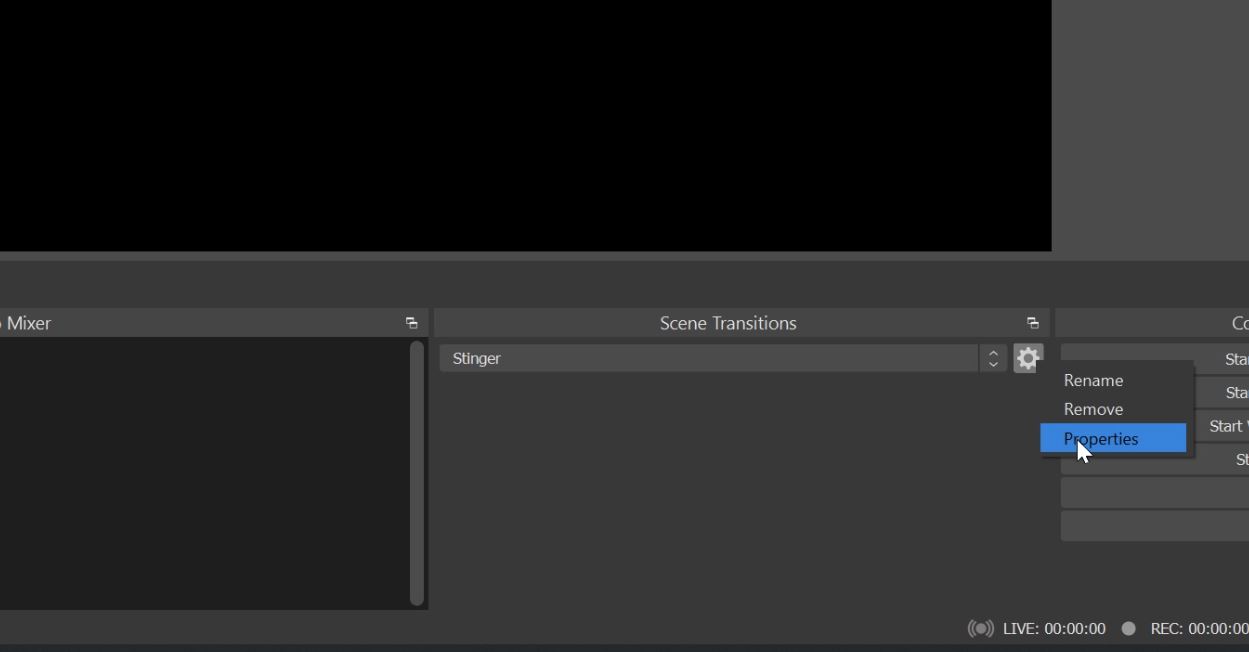
- If you are already using a Stinger, reset everything by choosing "Defaults" in the bottom left.
- In the Video File field, choose "Browse" and navigate to your "OBS v27+ (Side by Side)" folder and select a transition of your liking.
- Select the "Use a Track Matte" checkbox. By default it should select the "side-by-side (stinger on the left..." option. Leave this as is.
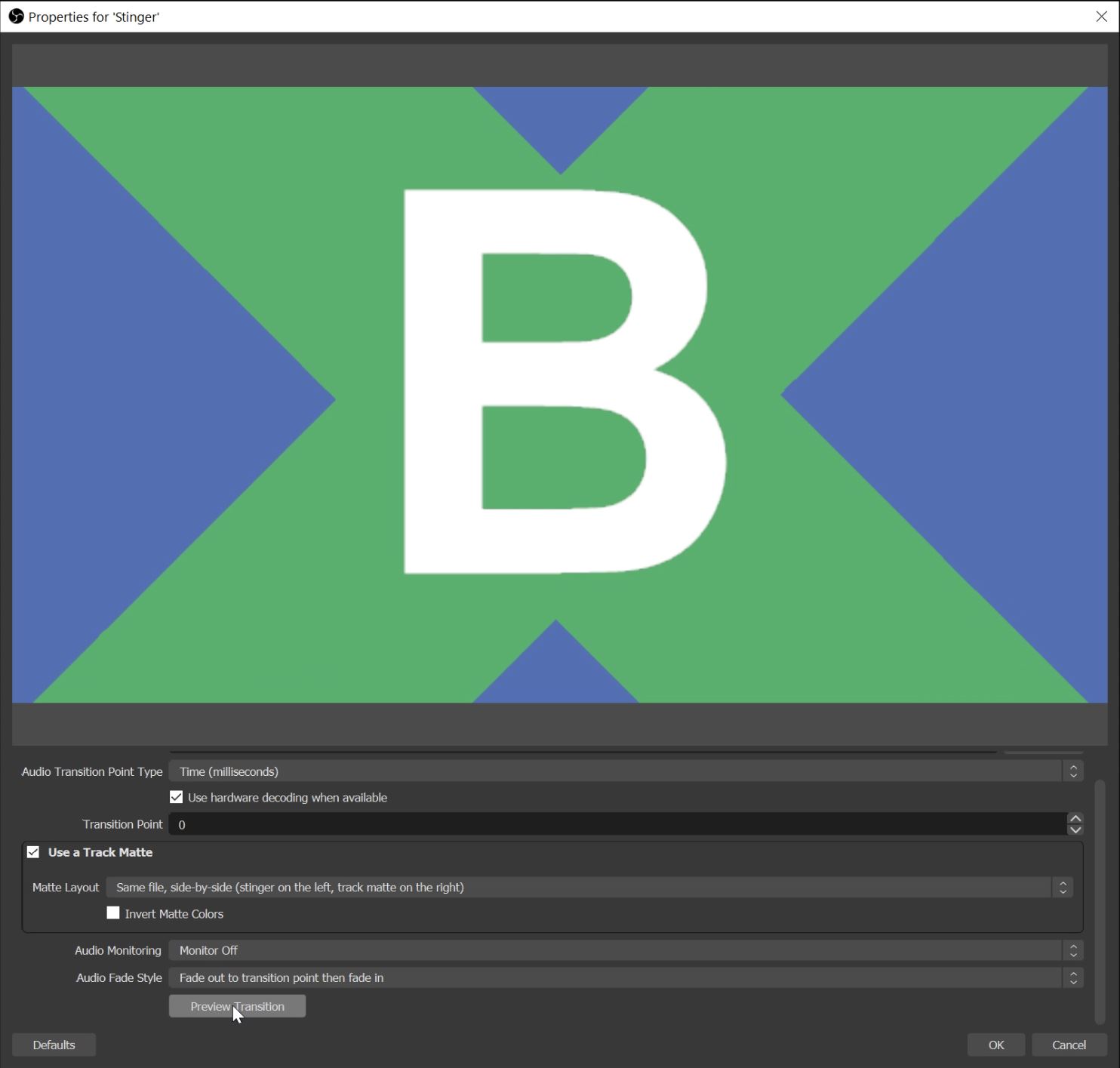
- You can now Preview Transition then click OK to apply.
Once you’ve added this into your streaming setup, test that the transition is working as intended, giving a few seconds between each scene swap.
Track Mattes in Video Editing
In your downloaded files, we have included a folder of high quality MP4 files. This is what you can use in your next edit. The below steps are for Adobe Premiere Pro, but the logic used can be applied to most video editing software.
- In Adobe Premiere Pro we will need to use two video clips (that you want to transition between) on two separate video tracks/layers. (Such as V1 and V2.) Then place a matte transition from your download above them, on another video track/layer. See the example image below. Both clips need to overlap the same length of the luma matte transition.

- Now apply the video effect Track Matte Key to your second clip. You will now see the Track Matte Key effect options under the effect controls for that clip. Set the Matte option to Video Track 3 (or whichever track has your luma matte clip on it), and set the Composite Using option to Matte Luma.

-
You should now see your luma matte transition working between the clips. Depending on your luma matte transition, you may need to turn on Reverse under the effect controls.
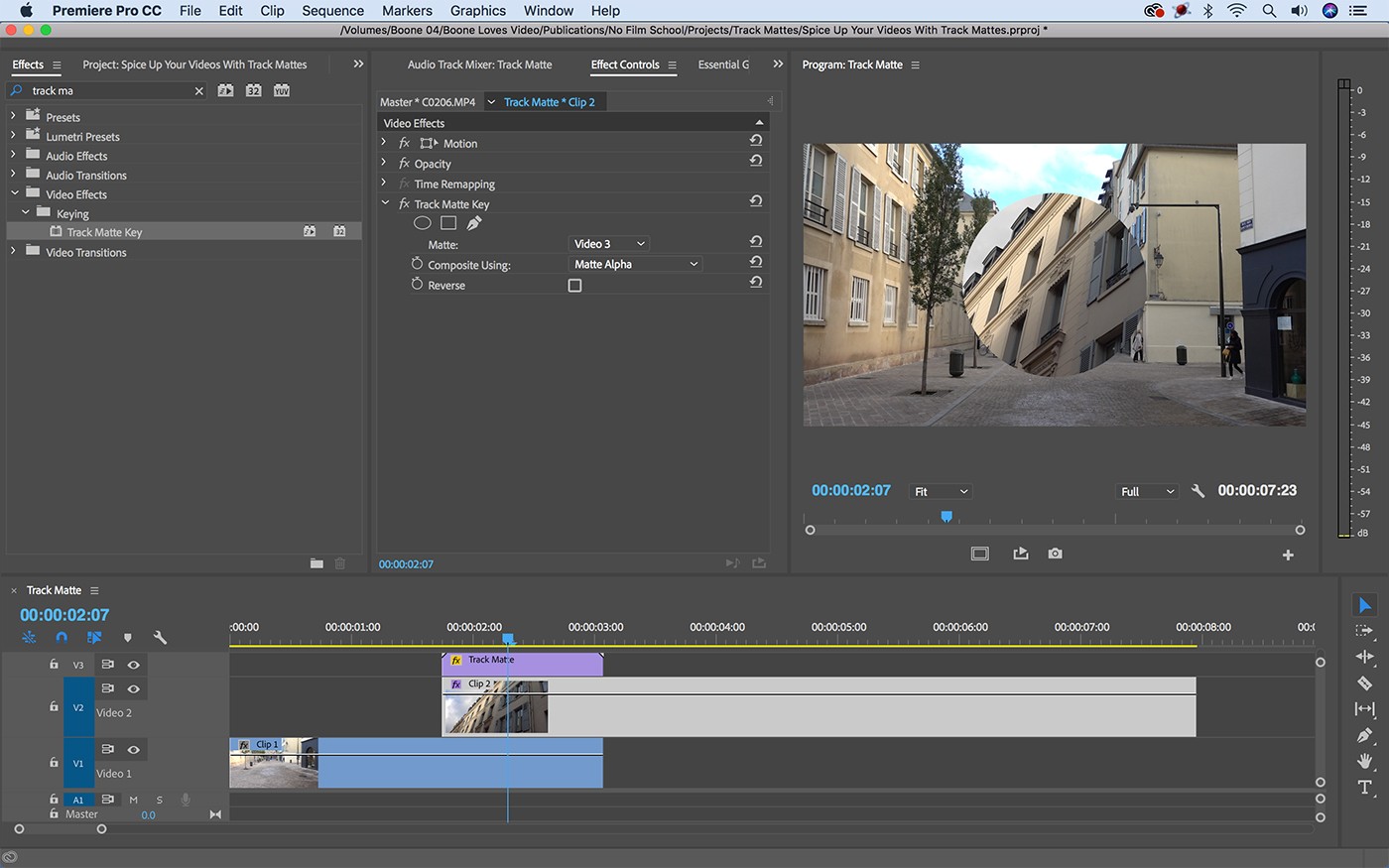
Finally, make sure you second clip continues to play (and doesn't cut to black or reveal the other clip).
- You should now see a cool matte transition between the clips!
Updated
Comments
0 comments
Please sign in to leave a comment.