Streamlabs Set-up
In your downloaded files, open the folder to the widget you would like to install.
- Click the Quick Setup link to begin installing the Widget.
- If you’d like, choose “Create Widget Theme” and name it something appropriate such as package name. The import link will only override your selected widget. This means you can combine these with any other scene collection/widgets you’ve made in Streamlabs. If you want to save your old widgets, it’s highly recommended you create the new profile.
- Select “Use” for the profile you want to import into.
- The page will automatically take you to the Widget settings for the widget you just imported.
- Click on the “Copy” button next to the unique URL.
- Paste this URL as a “Browser Source” in your streaming software.
Once you’ve added this into your streaming software, test the widget to make sure they’re working properly.
StreamElements Set-up
In your downloaded files, open up the StreamElements folder.
- Head over to Streamelements.com and ensure you’re logged in to the correct account.
- Double click the StreamElements Quick Setup link for the widget you want to import.
- This link will automatically open up the StreamElements website and begin the import.
- You should get a notification at the top of the StreamElements website stating the import was successful.
- Head over to “My Overlays”.
- You should now find the imported widget named after the pack they are from.
- Click on the “Launch Overlay” to get the URL for your alerts.
- Paste this URL as a “Browser Source” in your streaming software.
Once you’ve added this into your streaming software, test the widget to make sure they’re working properly.
The StreamElements links are specific to your platform. You can only use the Twitch link for Twitch, and YouTube for YouTube, and Facebook for Facebook.
Width and Height of Source
We generally recommend setting the size to 1920 wide and 1080 tall (more height is recommended if using messages), however, depending on your stream adjust the size here may work better for you. If you need to scale down, you can do so directly inside of OBS Studio. If you’re using the Streamlabs OBS .overlay file, you may not need to complete this step if your alert box is already added in.
Theme Options
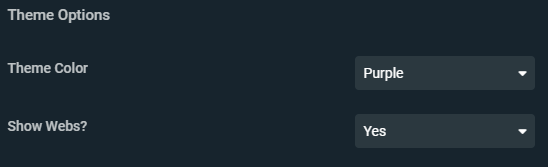
- Theme Color - There will be 3 options for the bar theme (Purple, Black, and Orange).
- Show Webs - This option will allow you to show or hide the web on the event dock.
Alert Text Options
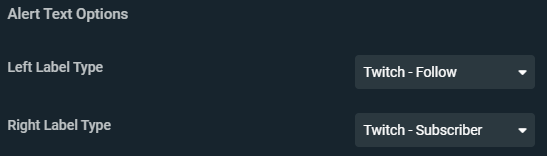
- Left Label Type - Select with event type you would like to show on the left side.
- Right Label Type - Select with event type you would like to show on the right side.
Avatar Image

- Spooky Icon - Select between 3 different animated icons (Pumpkin, Skull, and Ghost).
Alert Sound Options

- Alert Volume - Adjust the volume of the alert.
- Alert Sound - This is where you will add your own alert sound or use the included sound.
Updated
Comments
0 comments
Please sign in to leave a comment.